


If you want better rankings, happier visitors, and higher conversions, the first step is to optimize website loading speed.
Have you ever clicked on a website, waited a few seconds too long, and left in frustration? Chances are, your visitors are doing the same thing if your WordPress site takes more time to load.
Google study found that 53% of mobile users abandon a page that takes longer than 3 seconds to load. 46% of people say that waiting for pages to load is what they dislike the most when browsing the web on mobile devices.
That means if your site is slow, you could be losing over half of your potential customers before they even see what you offer.
The good news? You don’t need to be a expert or spend thousands of dollars on custom solutions to fix it. With the right combination of free and paid methods, you can make your WordPress site load blazing fast without compromising design or functionality.
Website Loading Speed Matters for SEO and User Experience
Why?
Because it affects both search engine rankings and how people feel on your site. When a site loads fast, visitors stay longer, click more, and enjoy the experience. Google also prefers fast sites, so speed helps you show up higher in search and bring in more visitors.
In short: website loading speed isn’t just about convenience, it directly impacts Google rankings, bounce rate, and even your revenue.
Did you know? 100-millisecond delay in your page loading can make about 7% of visitors lose interest and leave, according to Akamai study. That might not sound huge, but if your WordPress site generates $10,000 per month, you could lose $8,400 per year just because your site is slow.
But it’s not only about lost sales. Page speed is directly tied to how search engines rank your site and how users interact with it.
How Website Speed Affects SEO Performance
Google’s Core Web Vitals (LCP, FID, CLS) are official ranking signals. If your site performs poorly, you’ll struggle to outrank faster competitors. Search engines reward fast-loading pages because they improve the overall searcher experience. A faster WordPress site improves crawl efficiency, allowing Googlebot to index more pages smoothly. This also helps reduce common Google indexing issue fix challenges.
[Source: Google Developers – Core Web Vitals]
How Loading Time Impacts User Experience
Today’s visitors expect websites to load in 2 seconds or less – anything slower feels broken. Slow websites create frustration, leading to higher bounce rates and fewer returning visitors. Studies show 79% of online shoppers say they won’t return to a site that performed poorly.
Example: Imagine running a blog with great content, but every post takes 4 or 5 seconds to load. Even if you manage to rank high on Google, most readers won’t stick around long enough to read.
How a Fast Website Boosts Business Growth
Faster websites naturally lead to higher engagement, more page views per session, longer time on site. eCommerce stores see direct benefits: smoother checkout flows, fewer cart abandonments, and higher sales. Speed directly influences trust. A professional-looking website that loads instantly makes your brand feel more reliable.
In short:
- SEO loves speed.
- Users expect speed.
- Your revenue depends on speed.
If you ignore it, you’ll lose traffic, conversions, and credibility. No matter how good your content or products are.
How Fast Should a WordPress Website Be?
Ideal Performance Benchmarks
Below are the latest performance targets that align with Google’s current expectations:
- First Contentful Paint (FCP): Aim for under 1.8 seconds. This shows how quickly the browser renders the first visible element.
- Largest Contentful Paint (LCP): Keep this under 2.5 seconds. This is one of the strongest indicators of real experience quality.
- Total Blocking Time (TBT): Should stay below 200 milliseconds. This reflects how much JavaScript is delaying page interaction. TBT strongly influences the new INP metric.
- Cumulative Layout Shift (CLS): Stay under 0.1. This keeps your layout stable and prevents annoying jumps during loading.
- Speed Index (SI): Try to remain under 3.4 seconds. This measures how quickly the main content becomes visually complete.
These metrics, known as Core Web Vitals, are now part of Google’s ranking algorithm. Meeting them improves your visibility in search results. If your WordPress site doesn’t meet these benchmarks, both search engines and users will notice.
Mobile vs Desktop Speed Expectations
Mobile traffic faces more challenges because of slower networks and heavier design elements. A site that feels acceptable on desktop at 3 seconds can feel frustrating on mobile devices.
Aim for 2 seconds or less on mobile, especially since most searches now come from mobile users.
Why Benchmarks Matter
Benchmarks are like guideposts for your website speed. If your site is too slow, people leave. If it’s too fast but poorly handled, the experience can break. Clear benchmarks show you where you stand and when your site is running at its best.
How Can You Test Your Current WordPress Speed?
Before you start applying any fixes, the very first step is to measure your site’s current performance. Without testing, you won’t know whether your optimization efforts are actually making a difference. Thankfully, there are several free tools that can help you test WordPress site speed and track improvements over time.
PageSpeed Insights
PageSpeed Insights is Google’s official tool for measuring performance. Just enter your site URL, and it will show you a detailed report on Core Web Vitals such as FCP, LCP, and CLS. It also gives you suggestions to optimize WordPress speed like image compression, removing unused CSS, or enabling browser caching.
Here you can see how optimized it is for desktop and what areas still need improvement. Similarly, you can see how mobile-friendly your website is, how well it’s optimized for mobile, and all the details on what still needs improvement.
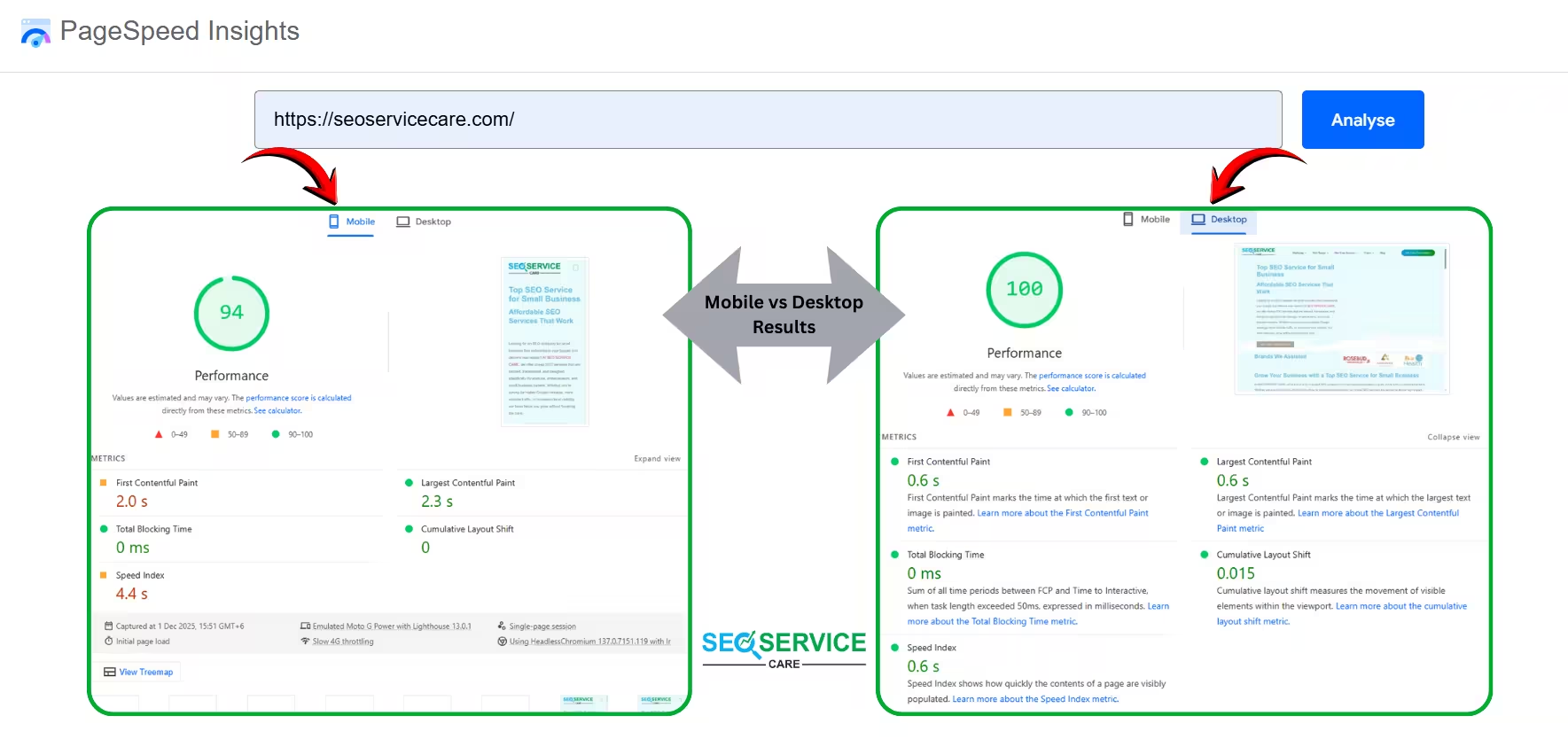
Also, using this Google tool, you can check your website’s performance report for the past 28 days and even view the Chrome UX report (If you look at the picture closely, you’ll understand).
GTmetrix
GTmetrix provides a deeper breakdown of your site’s performance. It not only shows load time but also gives a “waterfall view,” which lets you see exactly which files, scripts, or plugins are slowing down your WordPress site. This tool is very useful if your website feels heavy or you’re unsure which element is causing delays.
Pingdom Tools
For beginners, Pingdom makes it easy to understand what’s slowing things down and which areas you can fix quickly to speed up WordPress website.
Pro Tip: Run tests from different locations (like US, Europe, Asia) because your site might load fast in one region but slower in another, especially if you don’t have a CDN for WordPress.
Record Your Baseline
Once you run these tests, note down the baseline numbers:
- Overall performance score
- Page load time
- Core Web Vitals (FCP, LCP, CLS, & ect.)
Keeping these benchmarks will help you track progress after applying optimizations.
Free Method to Increase Website Loading Speed
By combining a few smart tools and following some best practices, you can noticeably speed up your WordPress site without upgrading to premium plugins or expensive hosting. Here are some effective free methods:
Optimize Images for Maximum Website Speed
Image optimization is one of the most important steps for improving website loading speed. If you upload large or 4K images directly, they slow down your site unnecessarily. Following a few simple rules before uploading can significantly improve loading performance.
Use the right format
Google now prefers WebP and AVIF formats. Free tools like TinyPNG or CloudConvert can convert your images and automatically compress them by about 80 percent. These formats are smaller in size but still maintain good visual quality. WebP works on all major browsers, making it the safest choice. This helps your pages load faster and improves Core Web Vitals.
Use the correct image size
There is no need to upload 4K images. Most visitors do not view content at such high resolution. Always upload a smaller version. A featured image around 1200px, content images around 1000px, and banner images around 1920px work perfectly. This reduces server load and helps pages render faster.
Compress your images
After choosing the right format and size, compression is essential. Along with the tools mentioned above, free tools like Compressor.io can reduce file size even further. The visual quality stays almost the same, but the loading speed improves a lot.
Small file sizes, the correct format, and smart compression: following these three steps will greatly improve your website loading speed and give mobile users a much smoother experience.
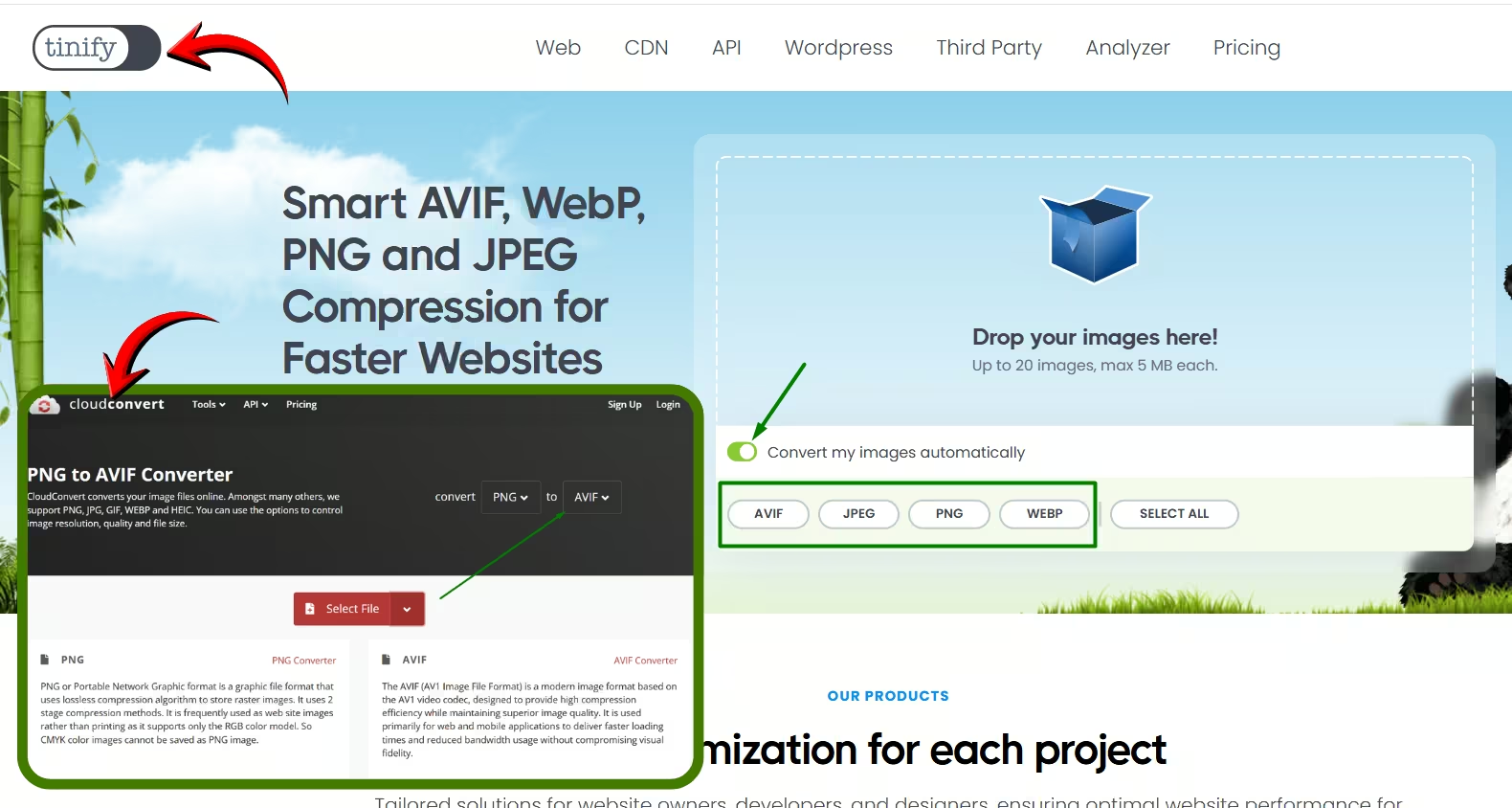
Note: TinyPNG, CloudConvert and Cloudinary can change the format and compress the image at the same time, so both tasks get done easily in one step.
Use a Free Caching Plugin
One of the easiest and most effective ways to boost your website’s loading speed for free is by using caching.
When caching is active, the server doesn’t have to process data from scratch every time. This makes your pages load much faster.
Here are 3 top free caching plugins that can speed up your website.
1. LiteSpeed Cache
If your hosting runs on a LiteSpeed server, this is a total game-changer.
Features of the Free Version:
-
Page Caching – Pages load faster because the server doesn’t have to reprocess data repeatedly.
-
Browser Caching – Resources are stored in the browser, speeding up reloads.
-
CSS/JS Minify & Combine – CSS and JS files can be minimized and combined.
-
HTML Minify – Reduce the size of your HTML pages.
-
Lazy Load – Images and iframes load gradually, helping the page open faster.
-
Database Optimization – Clean unnecessary data like post revisions and spam comments.
2. WP Super Cache
- Very easy to use and beginner-friendly.
- Works well on most shared hosting setups.
3. W3 Total Cache
- Has more advanced settings.
- Properly configured, it can deliver excellent performance.
Note: If you’re on a LiteSpeed server, LiteSpeed Cache should definitely be your first choice.
Remove Unused Plugins & Themes
Extra or outdated plugins and themes can unnecessarily weigh down your website. When they remain:
-
Increased memory usage
The backend slows down, and server resources get wasted. -
Slower database
Many plugins add their own data tables, which increases query times. -
Longer load time
Even inactive plugins can run background processes, reducing your site’s loading speed.
What to do
Completely delete plugins or themes you are not using. This improves performance, security, and overall website speed.
Duplicate plugins
Sometimes, audits reveal that two plugins performing the same function are active simultaneously, which isn’t necessary.
For example, if two caching plugins like WP Super Cache and W3 Total Cache are active at the same time, problems arise. Both do the same job, causing conflicts, higher resource usage, and slower site performance. So, use only one plugin at a time.
Use a Lightweight Free Theme
You don’t need a paid theme, free themes can work perfectly. Some of the best lightweight free themes are GeneratePress, Astra, Blocksy, and Neve.
Why these themes are recommended
-
GeneratePress is extremely lightweight, adding less than 10 KB on a default install.
-
Astra is very fast, offers many starter templates, and is highly flexible.
-
Blocksy and Neve also perform well in speed tests and keep your site lean.
Avoid heavy themes
Themes loaded with page builders or extra scripts, often called Elementor junk themes, can slow down your site. Using a heavy theme reduces loading speed and overall performance.
Limit Post Revisions
Every time you update a post or page, WordPress saves a revision. When too many revisions accumulate, the database grows, queries slow down, and overall performance is affected.
Using define('WP_POST_REVISIONS', 5); limits each post to a maximum of 5 revisions. However, if you are not familiar with advanced settings, this is not necessary, as there is an easier way.
Extra Tip:
You can use the WP Sweep plugin to delete all old revisions at once. Once done, you can safely remove the plugin. This trick is especially useful if your site has many updated posts, providing a noticeable speed boost.
Paid Method to Increase Website Loading Speed
In the previous section, it was mentioned that multiple plugins were manually used to improve a WordPress website’s speed, each providing different benefits. However, using too many plugins can have some negative effects. With a paid method, though, over 90% of these issues can be resolved using just a single premium website speed optimization plugin.
| Plugin | Typical Price | Real-World Speed Impact | Pros / Cons |
|---|---|---|---|
| NitroPack | Around 8–17.5 dollars per month per site (depends on traffic and CDN usage) | Delivers major improvements in PageSpeed and Core Web Vitals. Faster LCP, optimized images, built-in CDN and aggressive caching often reduce load time significantly. | Pros: All-in-one; built-in CDN and full image optimization; almost zero setup; very fast results. Cons: Monthly cost rises with high traffic; aggressive optimization can sometimes cause visual/compatibility issues. |
| FlyingPress | About 49–60 dollars per year per site | Noticeable real-world speed gains. Improved LCP, TBT and overall page responsiveness. Very consistent performance after proper setup. | Pros: Budget-friendly; lightweight; smooth performance; caching, CSS/JS optimization, lazy load; optional CDN. Cons: Built-in image compression is limited; full image optimization requires an extra service. |
| WP Rocket | 59 dollars per year per site | Strong performance improvements reported by users. Better caching, faster rendering, improved Core Web Vitals with proper setup. | Pros: Affordable; stable; compatible with almost everything; easy to tune. Cons: No built-in CDN or image optimization; some optimizations require manual tweaks or add-ons. |
Choose the Right Speed Optimization Plugin for Your Business.
| Plugin | Best For | Reason |
|---|---|---|
| NitroPack | E-commerce & high-traffic sites | Fully automated all-in-one performance |
| FlyingPress | Blogs, news sites, small to medium businesses | Lightweight and smooth performance |
| WP Rocket | Corporate, service, portfolio sites | Stable, flexible, and easy to control |
How I Optimised WordPress WebSite Speed with RabbitLoader
We had two plugins for speed optimization, but the previous one caused nearly 900 URLs to have double slash errors when connecting the CDN, which slowed down the site.
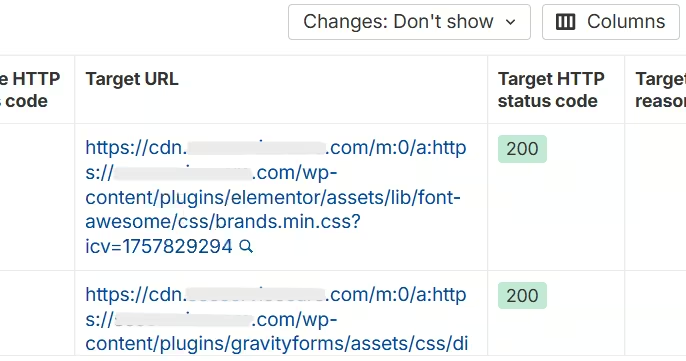
That is why I switched to RabbitLoader. After switching, I achieved excellent results, the site’s loading speed improved significantly, and I have not faced any issues, which is beneficial for rankings.
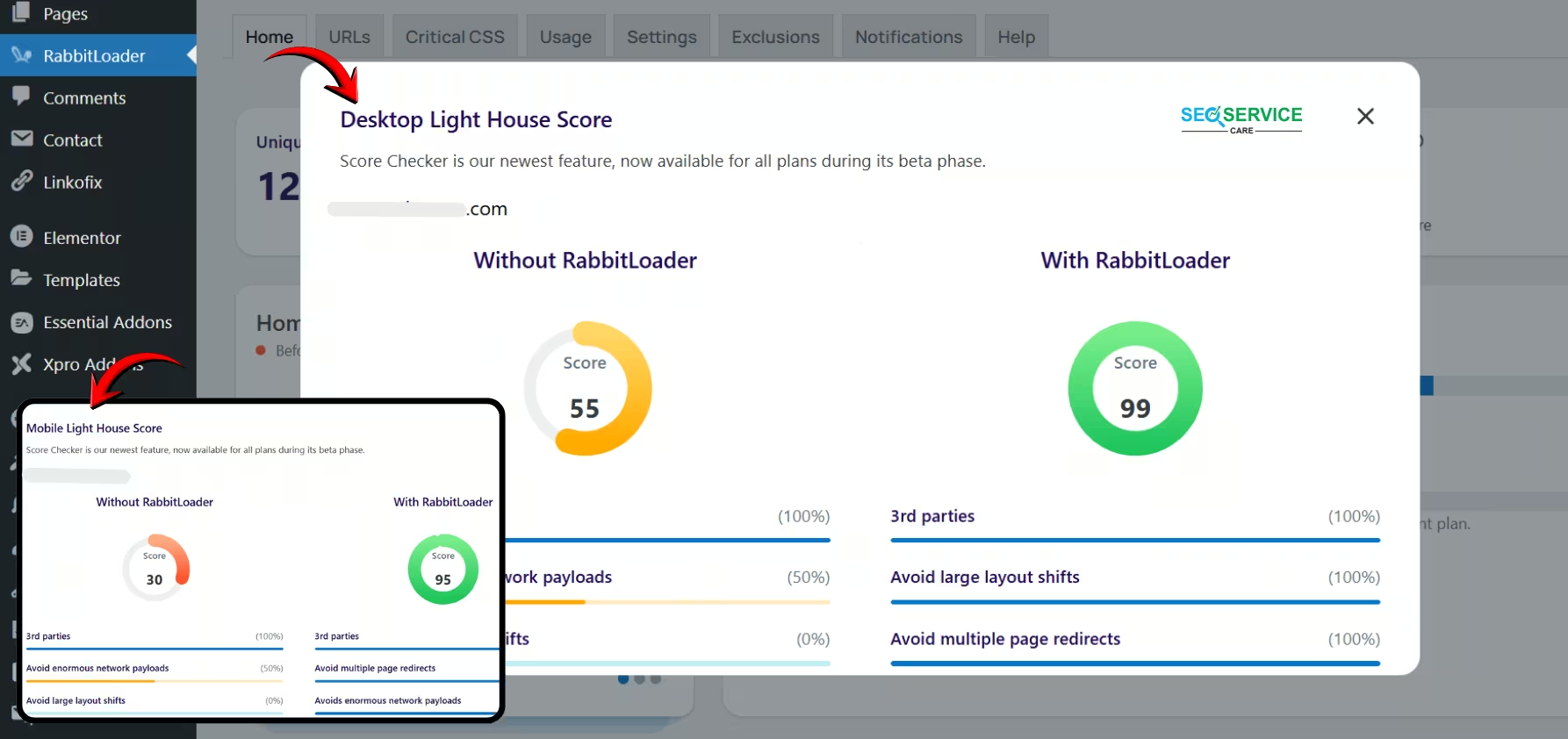
Note: I’m sharing what I’ve experienced myself. For small and mid-sized websites, RabbitLoader can be an effective tool for optimizing website loading speed.
How to Use RabbitLoader on Your Website?
Watch here RabbitLoader’s official video to see a quick tutorial on installing and setting up the plugin on your WordPress site.
-
Faster Page Loads – Sites can load in under one second, which may cut bounce rates by up to 50%.
-
Stable Visual Layouts – By generating per-page Critical CSS, layout shifts are minimized, leading to about 24% higher engagement.
-
Improved PageSpeed Scores – Many sites reach 90+ on Google PageSpeed Insights using just this plugin.
-
Core Web Vitals Ready – Optimized for LCP, CLS, and INP, helping sites maintain rankings and reducing the risk of a 24% ranking drop.
-
Better SEO and Conversions – A one-second improvement in speed can increase conversions by around 7%.
-
WooCommerce Benefits – Optimized product and checkout pages may boost sales by 15–30%.
RabbitLoader consolidates multiple functionalities into a single plugin, replacing separate tools for image optimization, Critical CSS generation, JS deferral, CDN delivery, lazy loading, minification, and PageSpeed monitoring. The result is fewer plugins to manage, lower conflict risk, and faster, more engaging websites.
Reference: wordpress.org
Summary of Insights
Speed optimization isn’t a one-time fix. It’s something you improve step by step. Start with the free methods and upgrade only when needed. A fast site gives you better rankings, better engagement, and stronger conversions.
Use caching, compress images, clean up plugins, and keep your theme lightweight. If you want an easier setup, a premium tool can handle most tasks with less effort.
Stay consistent, monitor your Core Web Vitals, and keep your site lean. Fast websites always perform better and help you stay ahead of competitors.
If you’re unsure where your site is slowing down or which method will work best, you can request a free consultation. We’ll check your speed issues and guide you on the right fixes based on your current setup.
You can also reach out to us directly by call (+1 213-232-9019) or WhatsApp if that’s easier for you.
